


 Payroll








Shift Rates and Roles Software for Temp Agencies
Set pay rates for each shift type and set up each role once. Consultants then assign shifts with the rate attached, and candidates see the rate, role and shift on their phone.
Reduce Admin with Rates for Shift Types
Create pay rates for any shift type (day of the week, bank holidays, overtime etc.), so when candidates are assigned to roles, they can see rates, roles & shift types. This saves agencies hours every week when assigning shifts to candidates, because each shift type already holds its rate.
Set rates for any day of the week, am or pm, and apply them to any role. Each shift type has its own fields, such as hourly pay and overtime, and each candidate’s hourly rate shows against their name.

Update New Roles with Ease
Create and manage roles centrally within your shift manager hub, including client sign-off preferences and shift types. Each role only needs configuring once, allowing consultants to reuse the same settings for future bookings and keep every placement consistent.
Client sign-off preferences set how timesheets for that role are approved, such as the Allow Sign Off On Site switch. List the shift types each role uses, such as early, late, night, weekend or bank holiday, edit any of them, and add more when a client’s needs change.

Assign Shifts with the Rate Already Attached
With rates, roles and shift types already configured, consultants can assign shifts instantly while candidates receive full shift details directly on their smartphone. This makes it easier to place candidates remotely, respond to urgent requirements, and keep desks moving efficiently.
Each candidate sees the client, role, start and finish times, shift duration and approximate pay on their phone, then confirms the booking in the branded app. Booked shifts connect to online timesheets, so the hours worked are ready for the client to sign off.

How to Set Up Shift Rates and Roles
Set up each client role once in Shift Manager, and consultants reuse the same settings for every future booking.
- Add the role: Add the role under its client, such as a care assistant or warehouse operative.
- Add its shift types: List the shift types that role uses, such as early, late, night, weekend or bank holiday.
- Set the pay rates: Enter the rates for each shift type, for any day of the week, am or pm, including hourly pay and overtime.
- Choose sign-off preferences: Set how timesheets for the role are approved, such as whether to allow sign-off on site.
- Assign shifts: Consultants assign shifts with the rate attached, and candidates see the rate, role and shift on their phone.

Pay Rates by Shift Type
Each shift type holds its own pay rates, so any shift premium your agency pays, such as a higher bank holiday rate, is in place before the shift is booked.
| Shift type | How the rate works |
|---|---|
| Day of the week | Set a rate for any day, am or pm, such as a weekday shift type for a care assistant role. |
| Early, late and night | Give each shift pattern its own shift type, so early, late and night shifts can carry different rates. |
| Weekend and Sunday | Add a weekend shift type, or a separate Sunday one, for the roles that need it. |
| Bank holiday | Keep bank holiday pay rates in their own shift type, ready for every bank holiday booking. |
| Overtime | Enter the overtime rate beside the hourly pay. Geofencing then helps track overtime hours. |
GOV.UK lists the current National Minimum Wage rates.
From Shift Rates to Timesheets and Payroll
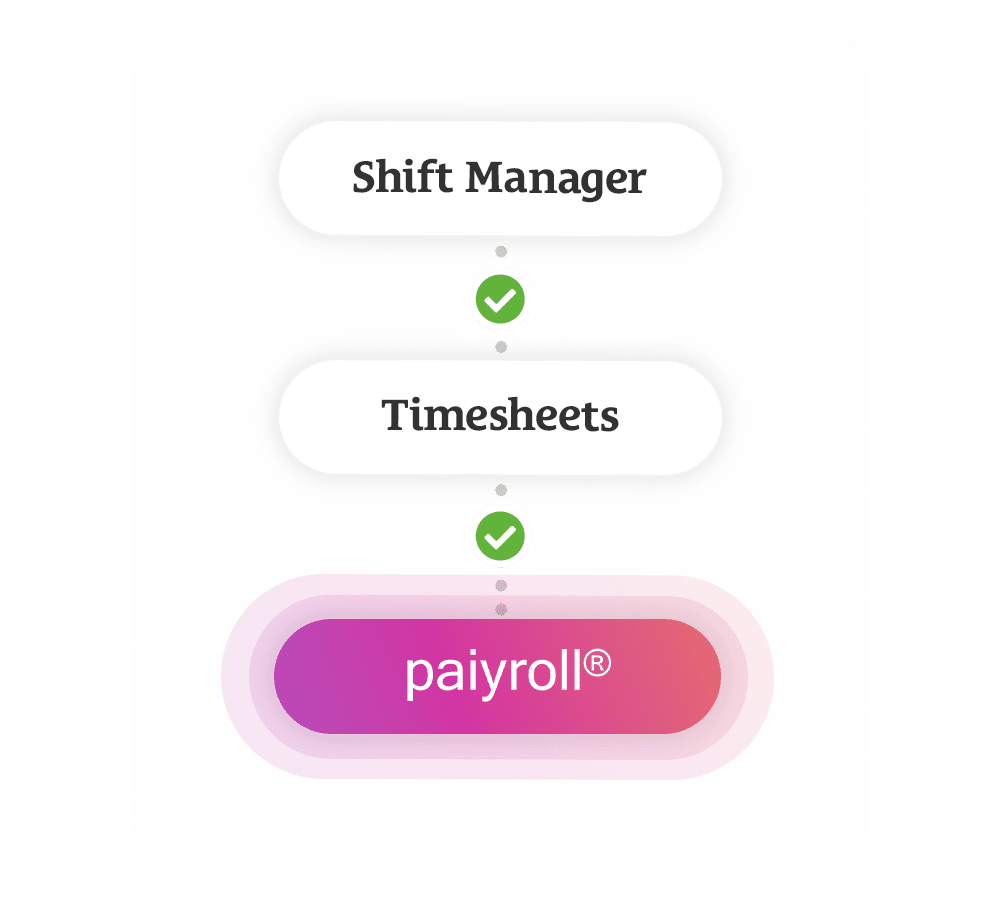
Every booked shift connects to Mobile Rocket’s digital timesheets. Candidates clock in and out on their smartphone, clients sign off the hours, and approved hours move into payroll through the Paiyroll integration, with no re-keying. The Xero integration turns approved timesheets into draft invoices. Read more about recruitment payroll software. To see what the week’s shifts add up to, filter shift reports by client, candidate or department for the total charge, total margin and average shift duration.
Join 2,000+ Consultants Who Use Us Every Day









Discover the Other Features of Shift Manager


Questions Agencies Ask About Shift Rates and Roles
What are shift rates and roles?
Shift rates and roles are the settings behind every temp booking: the pay rates for each shift type, and the roles candidates are booked into. In Mobile Rocket’s Shift Manager, agencies set them up once for each role. Consultants reuse those settings for every future booking, and candidates see the rate, role and shift on their phone.
Can each client have its own roles and shift types?
Yes. Each role sits under its client, with its own shift types and client sign-off preferences. One client’s warehouse operative role might use early, late, night, weekend and Sunday shift types, while another client’s sales associate role uses day, late, night, weekend and bank holiday. Edit any shift type, or add more when a client’s needs change.
What do candidates see before they accept a shift?
When booked, candidates get a push notification and full shift details on their smartphone, in your branded app. They see the client, role, start and finish times, duration and approximate pay before deductions or additions, then confirm the booking. All of this comes from the rates, roles and shift types your agency has already configured.
What are client sign-off preferences?
Client sign-off is the client approving a candidate’s timesheet. Sign-off preferences are set once on each role, alongside its shift types, such as the Allow Sign Off On Site switch. Clients can log in on any device, at any time of day, to review and approve the hours, and approved timesheets go to payroll.
Which Mobile Rocket plans include shift rates and roles?
Rates, roles and shift types are part of Shift Manager, which comes with the Starter, Growth and Scale plans. Starter covers 3 users and 200 candidates, Growth 4 to 10 users and 1,000 candidates, and Scale 11 or more users with unlimited candidates. To see it set up for your agency, book a free demo.
All-in-one Shift Management to Save Time & Place More Candidates
Call us on +44 (0)1325 633 287 or email sales@mobilerocket.co.uk